Havolith User Guide
Learn how to install and use our tools with this comprehensive guide.
Script Installation Guide
⚠️ VERY IMPORTANT – DO NOT SKIP THESE STEPS!
-
Download the Script:
Get the latest version from your panel. If your browser blocks it, open Downloads → click the three dots next to the file → Allow download. -
Recommended USB Usage:
For maximum safety we strongly recommend running the script from a USB drive.
Watch this short video on how to set it up › -
Before You Run the Script:
• Exit Steam completely.
• Close Rust if it's already running.
• Run the script first, then launch Rust. -
Disable Antivirus Software:
Temporarily turn off any antivirus or real-time protection to prevent false positives. -
Run the Script:
Launch the loader, paste your license key with CTRL+V, and wait for confirmation. -
Start the Game:
Everything is ready—now you can open Rust and enjoy.
Game & Program Settings
Your sensitivity settings in the game and in the script must match exactly.
Recommended Console Commands:
graphics.fov 90
input.sensitivity 0.40  or input.sensitivity 0.33 //or lower
input.ads_sensitivity 1
Additional Info
- Click Enable Recoil to activate features. Screenshot
- Verify your crouch key matches in both game and script. Screenshot
- Menu Key: INSERT
- Close Key: END
Note
Double-check these settings before seeking support to ensure smooth operation.
Script & Game Performance Tweaks
Optional Settings
These settings are optional. If the script is not working as you want, we strongly recommend that you do all the steps below.
-
Configure Mouse:
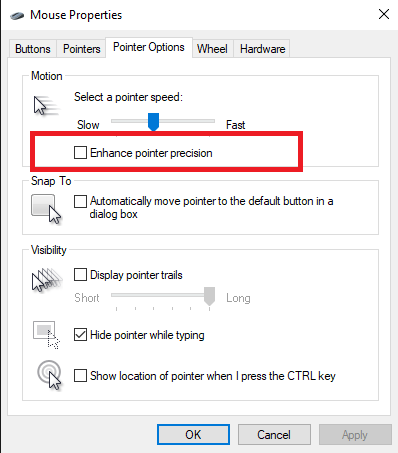
Go to Control Panel → Mouse → Pointer Options:
✔️ Turn off "Enhance pointer precision"
✔️ Set DPI to 800–1600
-
Optimize System Performance:
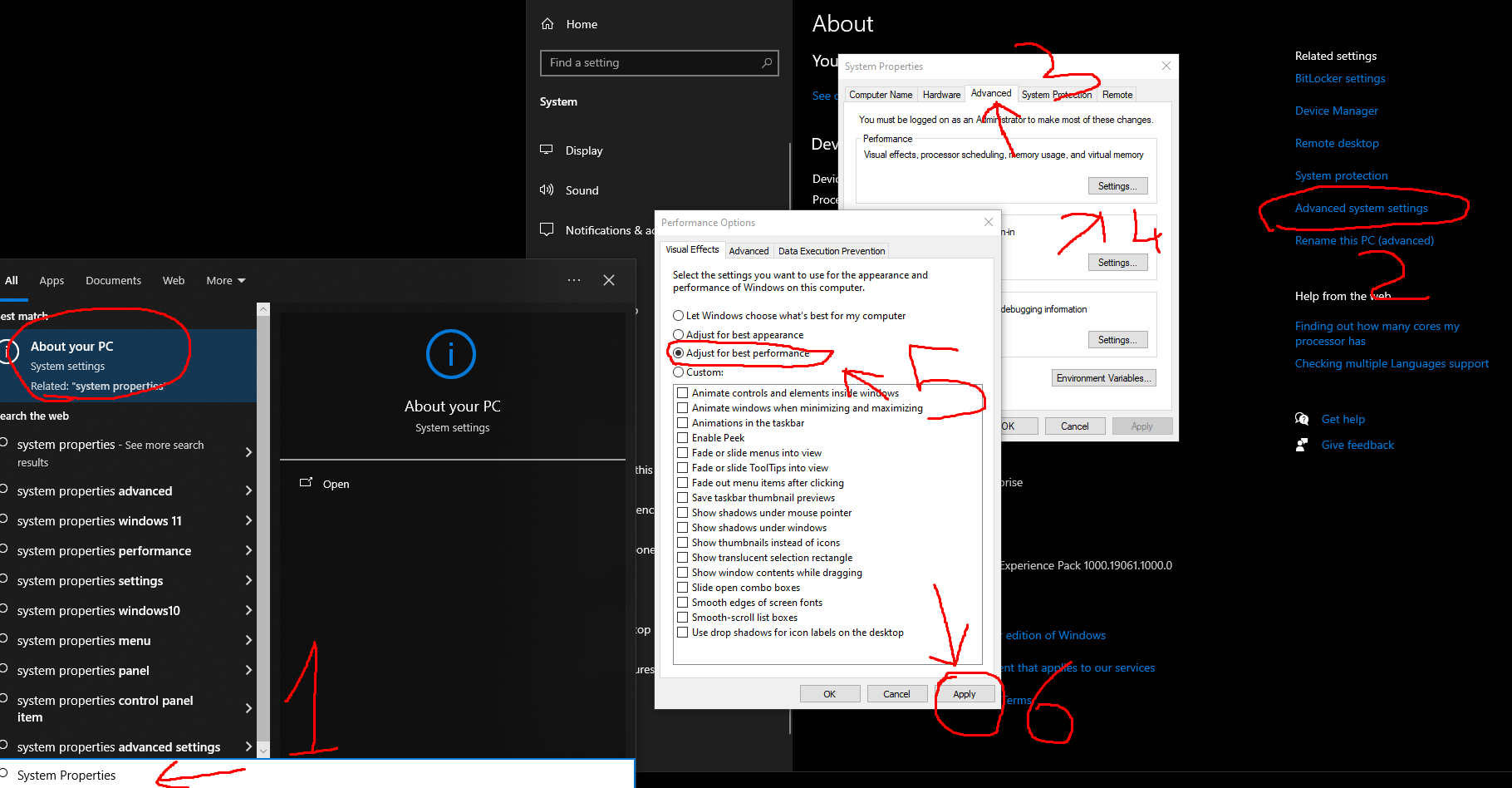
Open System Properties → Advanced → Performance Settings and choose "Adjust for best performance."
Then in Control Panel → Power Options, select "High Performance" or "Ultimate Performance."
-
Run Script at High Priority:
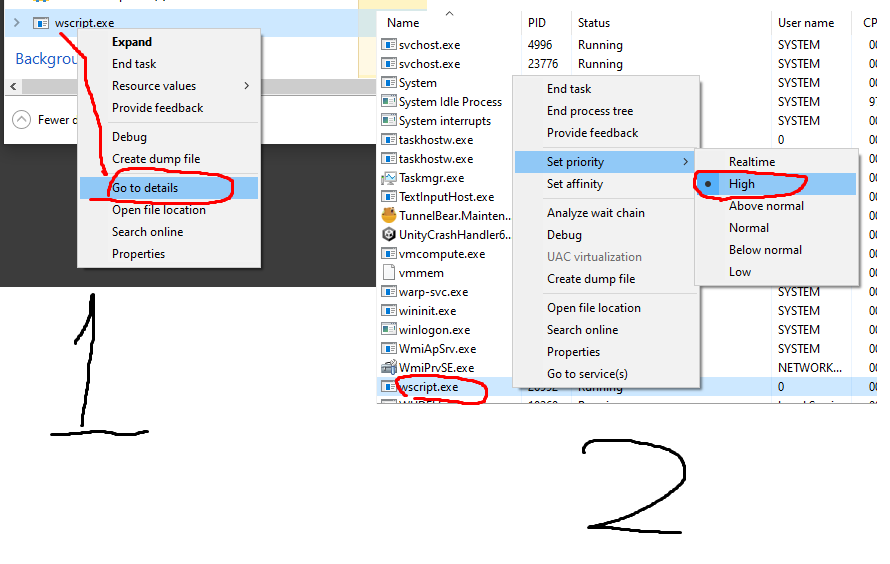
Open Task Manager → Details → right-click your script → Set priority → High.
-
Close CPU-Intensive Programs:
Use Task Manager or Process Explorer to terminate unnecessary apps (e.g., Razer, Logitech, Discord overlay). -
Recommended Game Resolution:
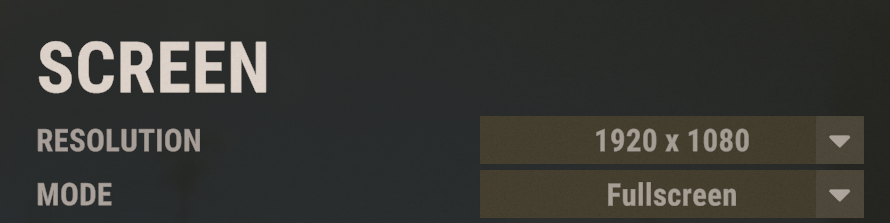
The script supports all resolutions, but we strongly recommend using your monitor's native resolution for the clearest visuals and best aim consistency.
Extra Tips
If recoil is not working as desired, check and close duplicate script instances via Task Manager.
Hide the script with INSERT for better CPU usage and performance.
Lower sensitivity settings (DPI/SENSITIVITY) generally yield more consistent results.
Hide the script with INSERT for better CPU usage and performance.
Lower sensitivity settings (DPI/SENSITIVITY) generally yield more consistent results.
Performance Note
In tests, Havolith recoil script achieves 96.4% accuracy.
Due to random recoil in Rust, manually control the remaining 4% by shooting while crouched for maximum precision.
Once complete, you now have a more accurate Rust script.
Due to random recoil in Rust, manually control the remaining 4% by shooting while crouched for maximum precision.
Once complete, you now have a more accurate Rust script.
System Requirements for Script
NVIDIA Drivers
Download NVIDIA DriverAMD Drivers
Download AMD DriverIntel Drivers
Download Intel Driver
⚠️ Make sure to install all updates above to avoid DLL and driver errors.
Tip: Install both x64 and x86 C++ versions for full compatibility.
Need Help?
If you encounter any issues, open a support ticket via our Discord channel.
Enjoy your enhanced Rust experience!
Havolith.com